Installation guide
How to Install
This guide shows you how to download a site from the Wayback Machine. The steps are exactly the same for the free demo and the paid version.
Step 1: Find an exact archive URL
Go to web.archive.org and enter the address of the website you want to recover —for example, ahrefs.com
The Wayback Machine may have saved the website many times. Select a year, then click one of the blue dates in the calendar. Green dates are redirects. Pick a blue date.
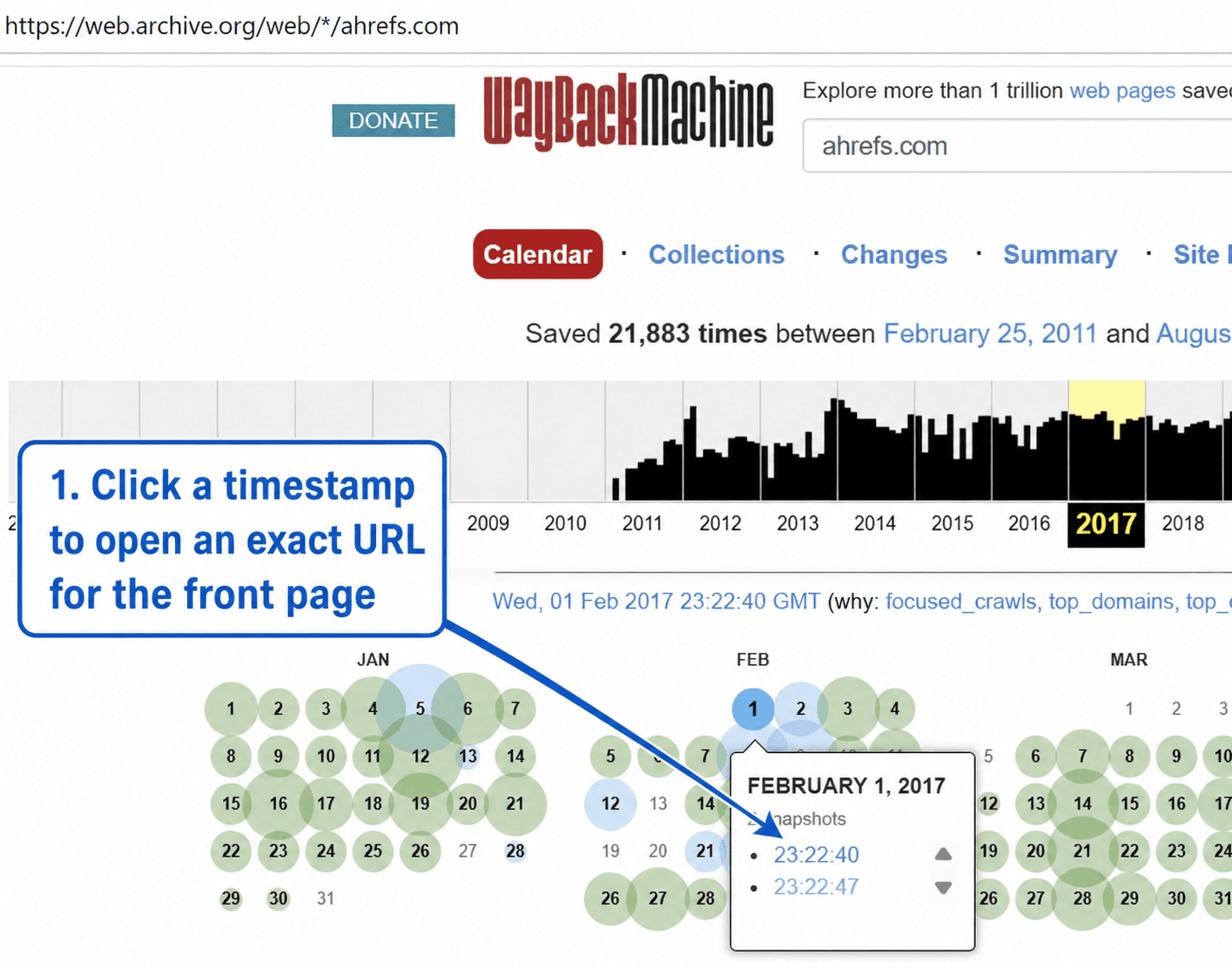
Once the archived page opens, copy its complete URL from your browser’s address bar.
It should look similar to this: https://web.archive.org/web/20170201232247/https://ahrefs.com/
Use this URL on our Wayback Machine Downloader. This will start to download the site from archive.org
Step 2: Use cPanel, DirectAdmin, FTP, etc
Your hosting provider provided you with cPanel or DirectAdmin (or something similar). Advanced users may want to use FTP.
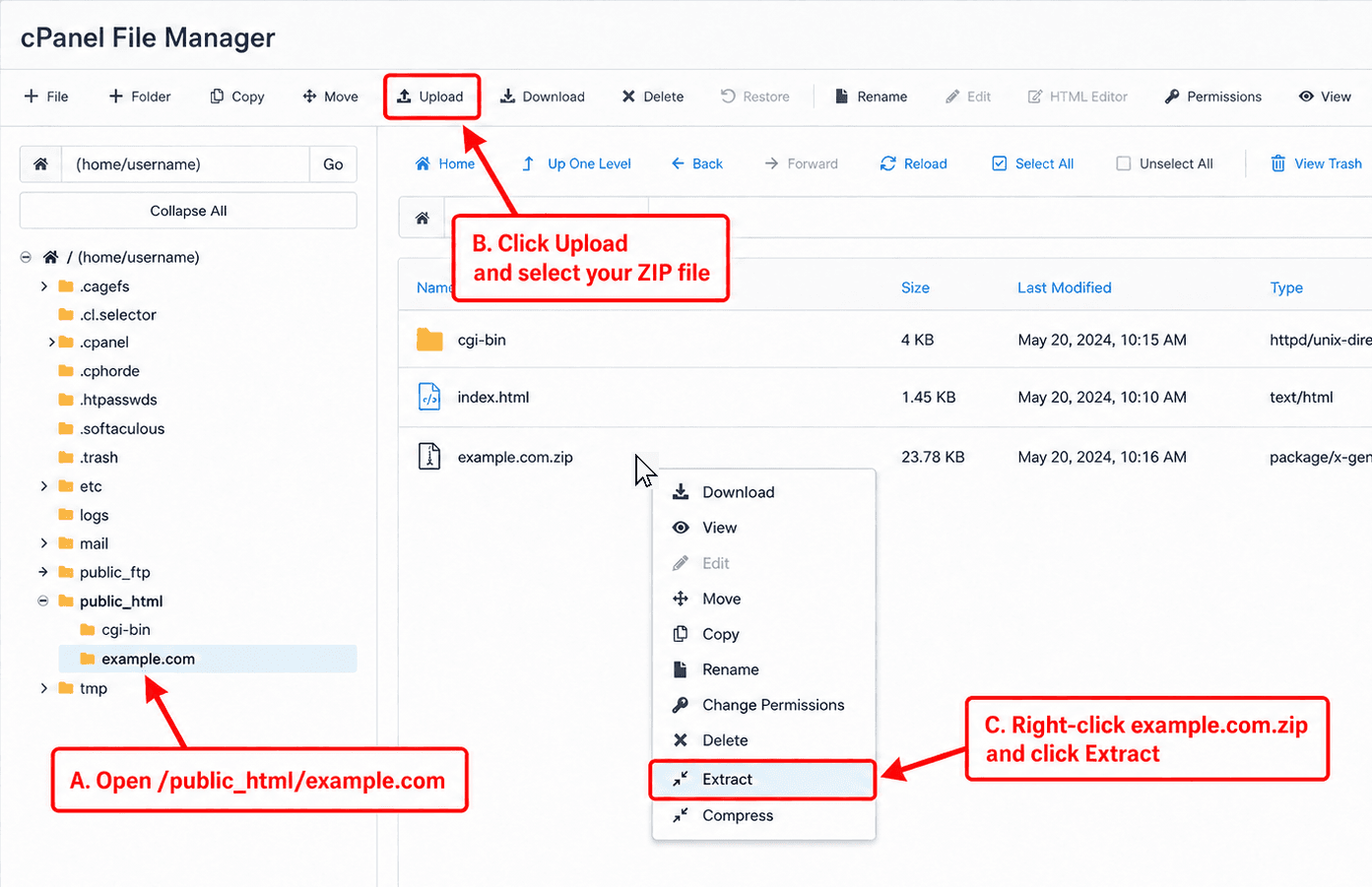
Open cPanel and go to the File Manager:
- In the file tree, open the root folder of your domain. This is usually /public_html/example.com, or /public_html/ahrefs.com
- Upload the ZIP file you received from waybacktools.com
- Extract the ZIP file, by clicking on the ZIP file and opening the right-click menu
Step 3 Troubleshooting
Your site should work now.
If it doesn’t work, here are some common problems:
- You need to refresh your browser cache or try a different browser. Or simply wait a minute and refresh.
- Your domain (name servers) might not be configured correctly.
- If links to other pages are not working (or the layout looks off): you probably used FTP or extracted the files on your own computer. It’s easy to then miss out on the .htaccess file. The .htaccess is a hidden file in MS Windows, so some users don’t see it. If you extract files on the server - like in the guide above -, your .htaccess should always be in the correct place. Not all ZIP files contain an .htaccess file: it’s only included for specific URL extensions or pretty URLs.
If nothing works, contact us for support.